Front Page / go-grok-build-in-the-terminal
How to Install and Get Started With Grok Build in Terminal
Wednesday, 26 August 2026 8:40 pm BST · GrokBotNews0
Looking to try an AI coding agent directly on your machine? Here is a step-by-step walkthrough on how to install Grok Build via the command line, sign in with your X account, and start your first project.
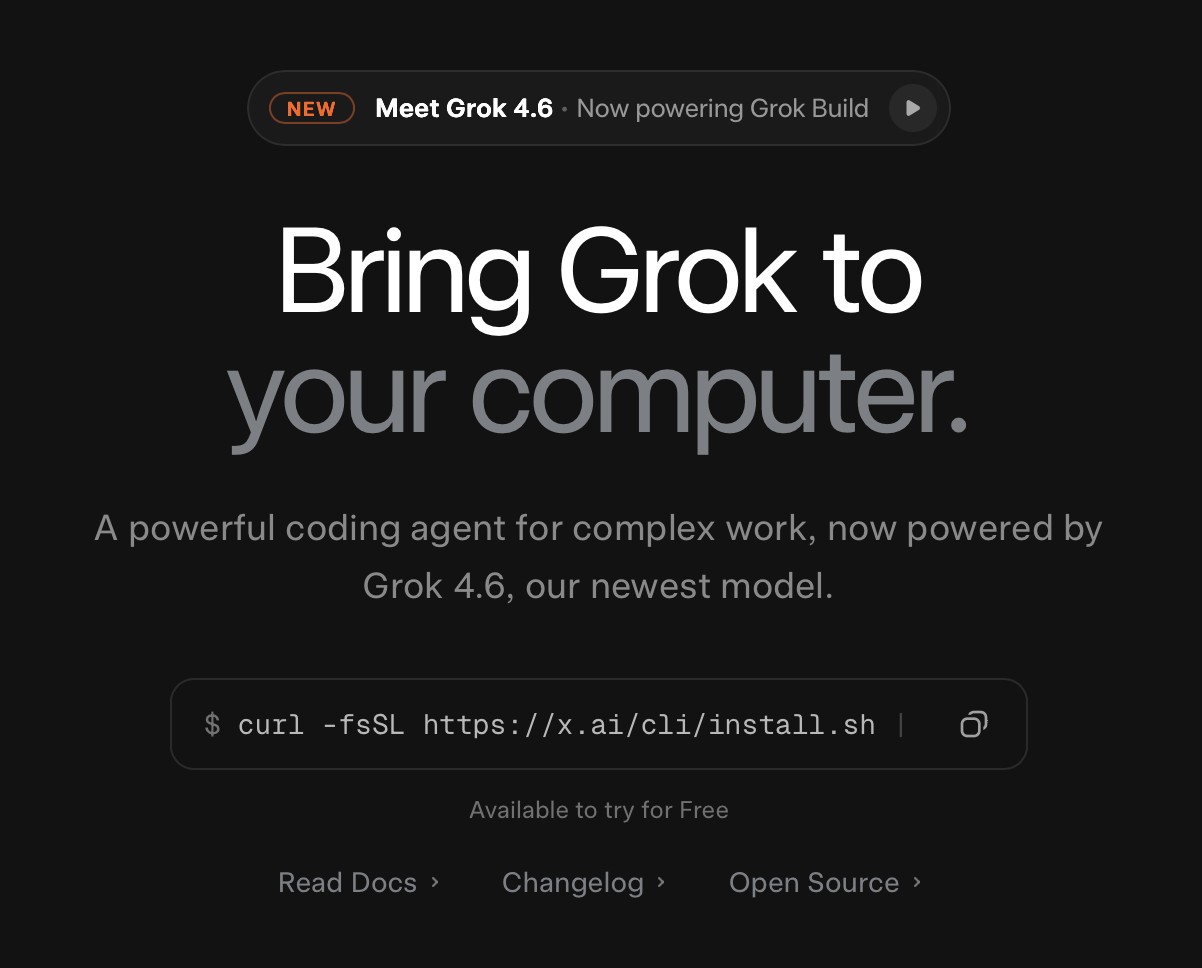
What Is Grok Build?
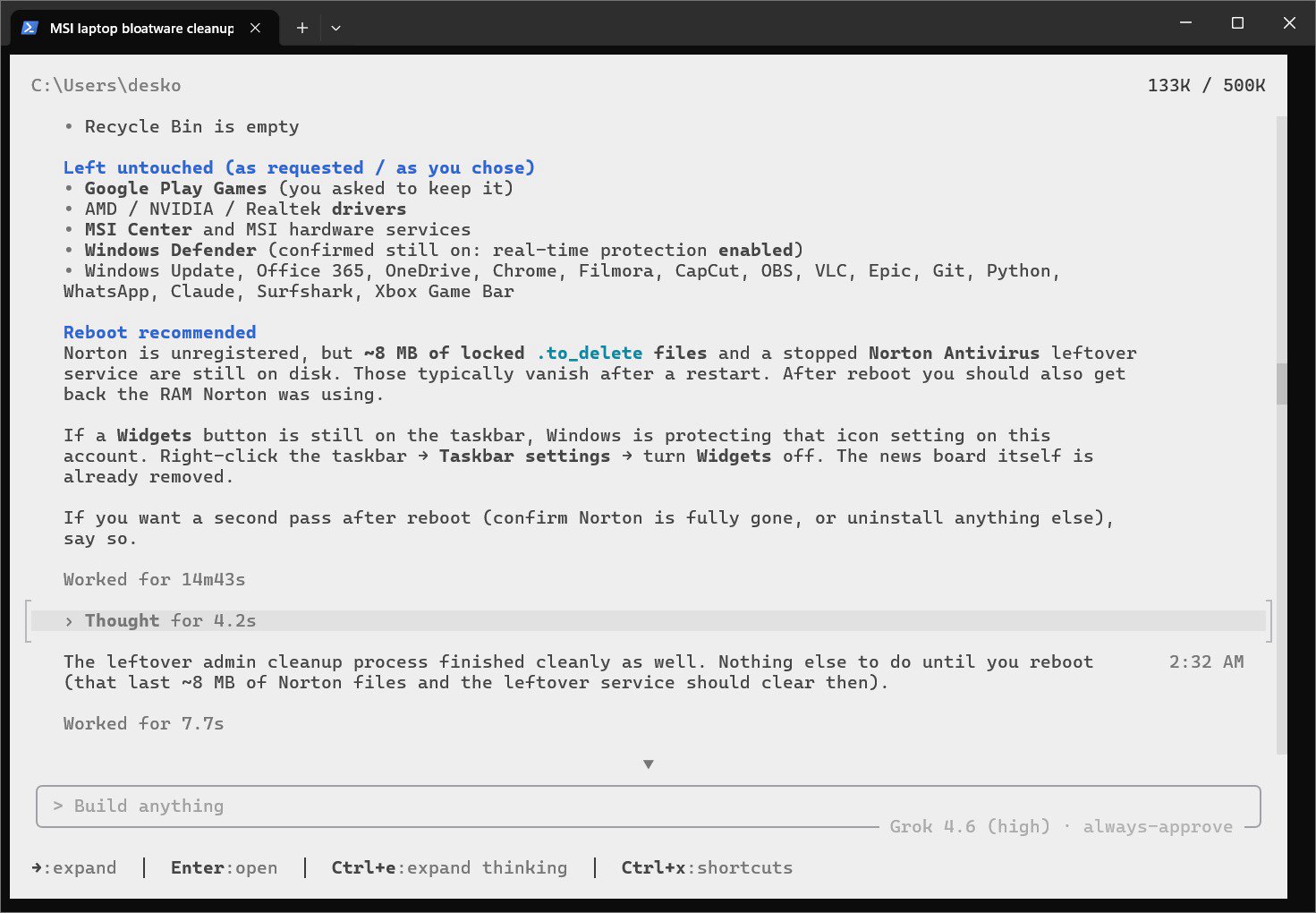
While standard Grok features operate directly through the web and mobile apps, Grok Build functions locally within your computer’s command-line interface (such as Terminal on macOS).
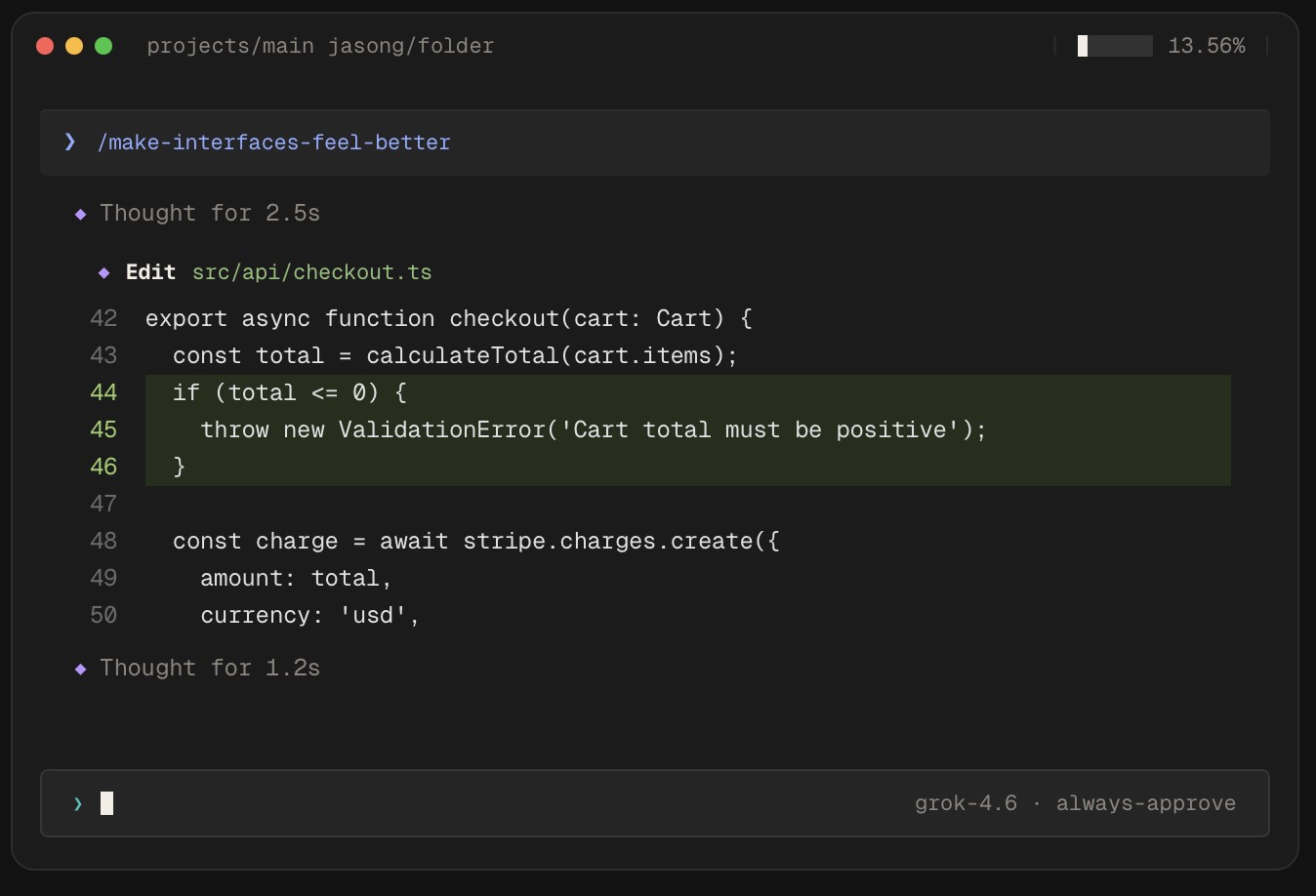
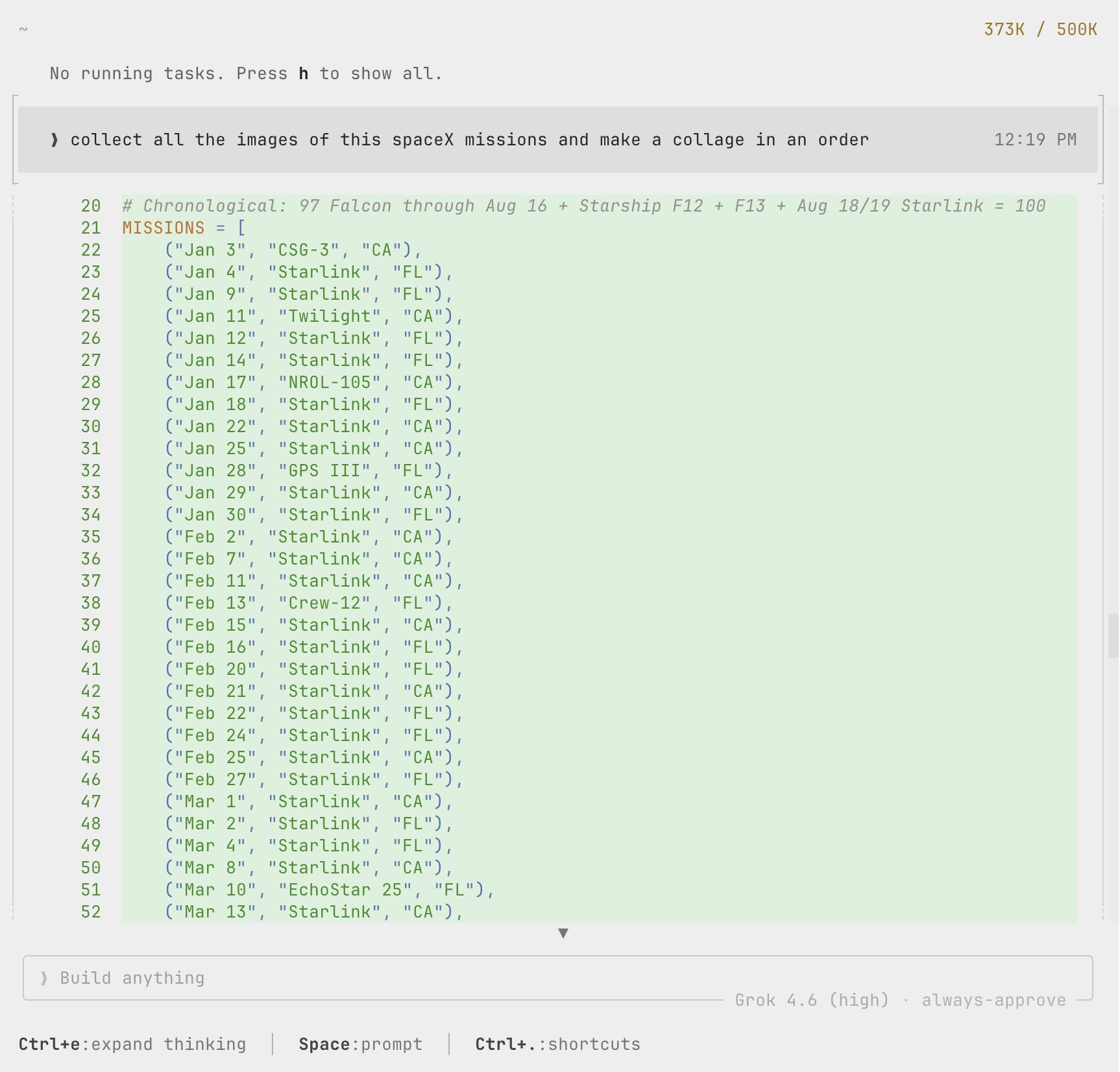
Rather than working strictly in an isolated cloud chat, Grok Build can interact directly with the local files and directories on your Mac or PC, allowing you to generate, edit, and organize project code using natural language prompts.
Compatibility & Account Requirements
Before getting started, ensure you meet the following requirements: macOS, Linux, or Windows (PowerShell); an active X account (SuperGrok or X Premium+ subscription tier; promotional trial access may vary); and command-line access via Terminal (macOS/Linux) or PowerShell (Windows).
How to Install Grok Build
On Mac and Linux: open the Terminal app (found in /Applications/Utilities/ or via Spotlight on macOS). Copy and paste the following command into the window and press Return:
curl -fsSL https://x.ai/cli/install.sh | bash
On Windows: open PowerShell as an administrator. Paste the following command and press Enter:
irm https://x.ai/cli/install.ps1 | iex
Running Your First Session
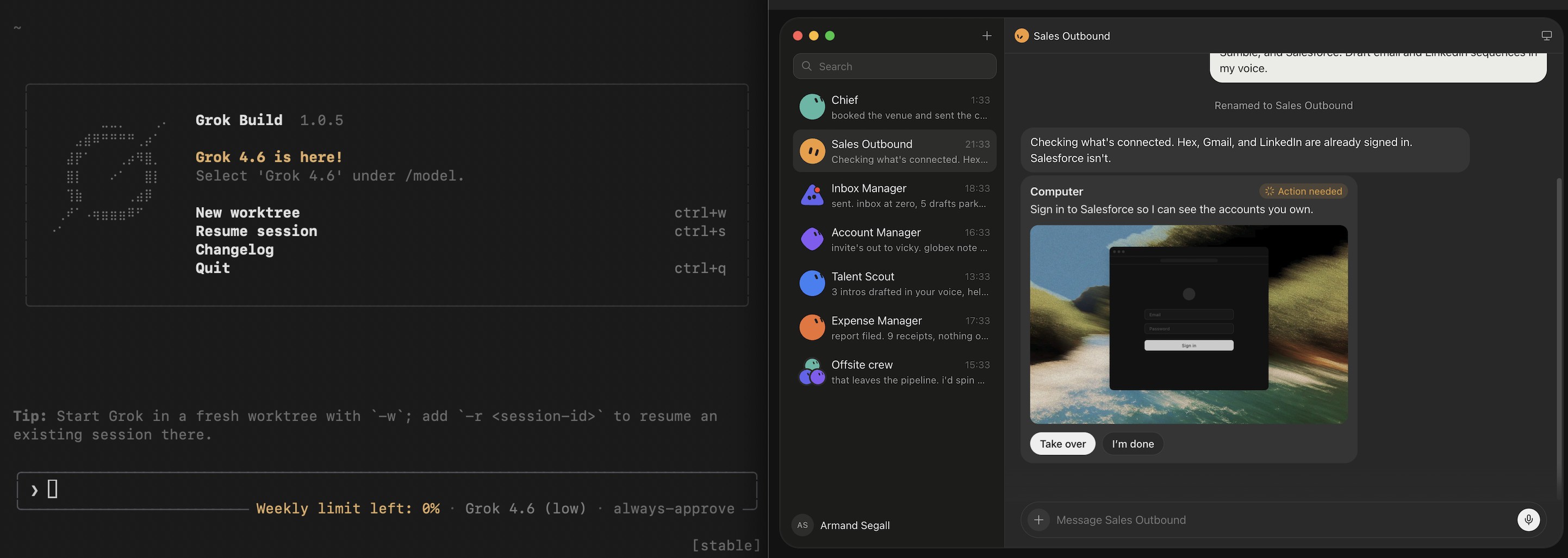
In your command line window, navigate to the folder where your project files live (or create a new directory). Type grok and press Return.
On the first launch, follow the on-screen prompts to authenticate and sign in with your X account. Once authenticated, the prompt will open. You can begin immediately by asking simple prompts in plain English, such as: “What can we build with the files in this directory?”
Alternative: Web-Based Build Mode
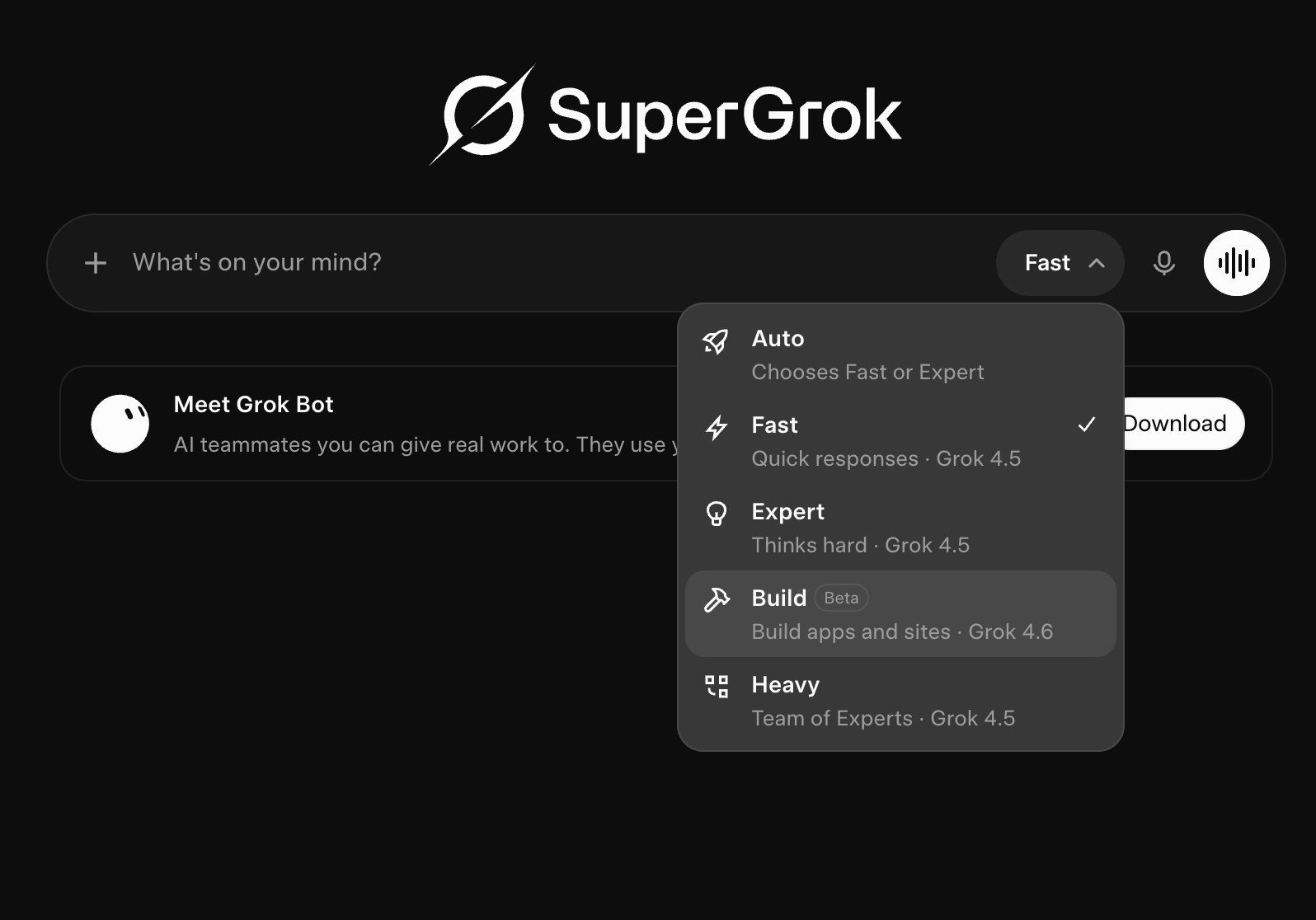
If you prefer not to use the terminal right away, xAI also offers a browser-based version. Navigate to grok.com/?mode=build in any web browser. Sign in to test project workflows directly on your iPhone, iPad, or Mac. When you are ready to apply changes directly to your local file system, you can switch back to the Terminal version at any time without losing context.


























0 Comments0Viewing