Front Page / grok-bot-download-youtube-clip
How to Download a YouTube Video and Clip It on Grok Bot
Sunday, 30 August 2026 10:00 am BST · GrokBotNews0
Hand Grok Bot a YouTube URL, land a 4K file in Downloads on its computer, cut a clip without re-encoding, and save the download as a skill. Then share that Bot as a template if you want.
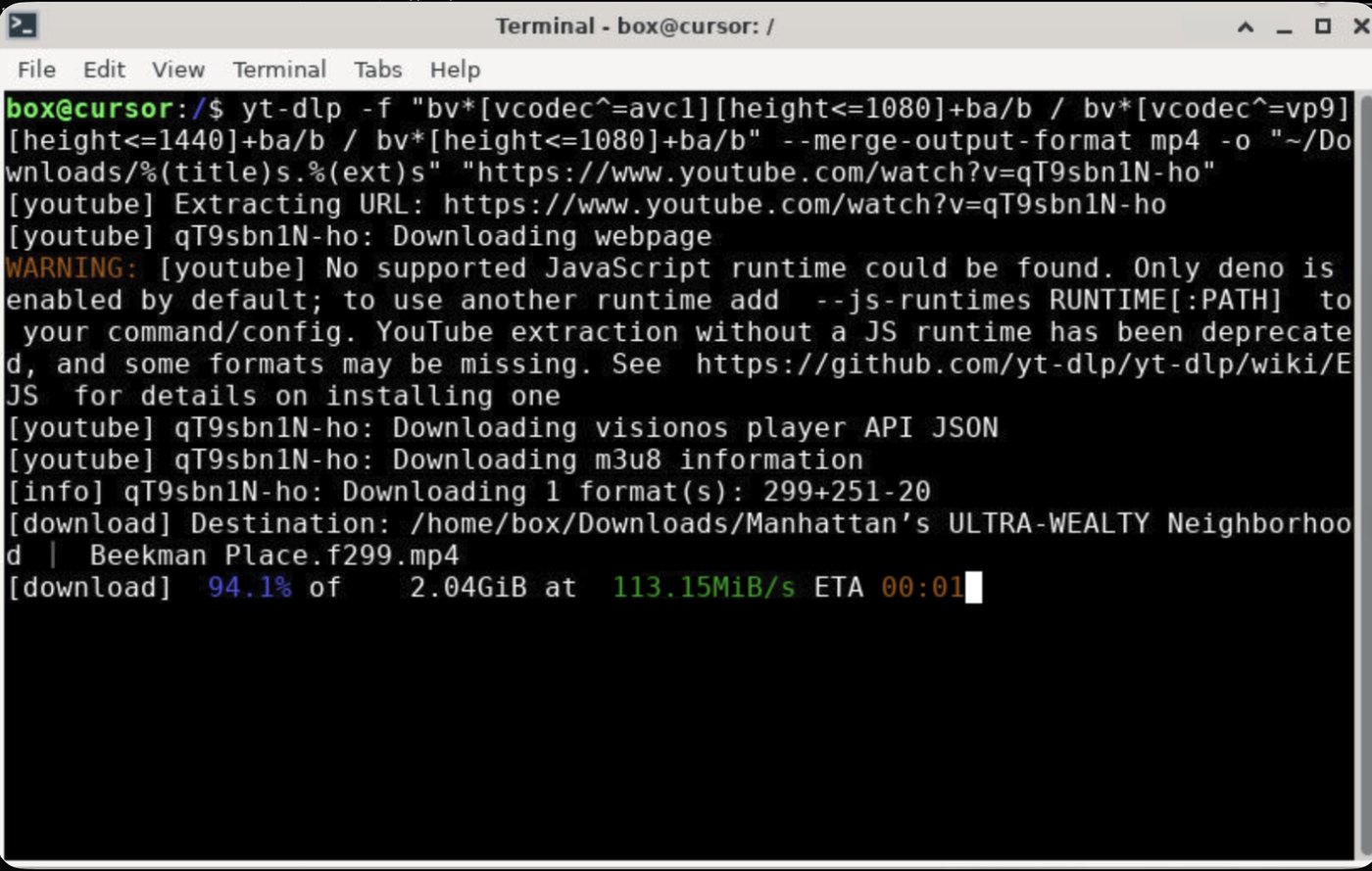
You can hand Grok Bot a YouTube URL, land a 4K file in Downloads on its computer, cut a clip without re-encoding, and save the download as a skill. Keep reading for the steps this desk used, then how to share that Bot as a template.
What you need
Log in to your YouTube account on the Grok Bot cloud computer (this provides credentials to the terminal so the download process can proceed smoothly).
You also need the Grok Bot app, updated; a Bot you can talk to (this desk used Video editor); and a YouTube URL.
On this desk the source was Drone Washington Square Park & Greenwich Village. The download came down as VP9 3840×2160 at 30 fps, merged to mp4, about 1.4 GB and 10 minutes 45 seconds. Your file will differ. Highest quality here meant keep that 4K stream, then clip with stream copy, not a re-encode.
How do you download the video?
1. Open the Bot.
2. Paste the YouTube URL. Ask it to save the file into Downloads on its computer, in the highest quality it can get, merged to mp4. If you want to see it on the desktop, say so.
3. If you already have a yt-dlp line, paste that too and tell it not to change the format flags on the first try.
This is the command that worked here. ~/Downloads on the Bot’s computer already pointed at the real Downloads folder. It did not need rewriting.
yt-dlp -f "bv*[vcodec^=vp9][height<=2160]+ba/b" -S "res:2160" --merge-output-format mp4 -o "~/Downloads/%(title)s.%(ext)s" "URL"
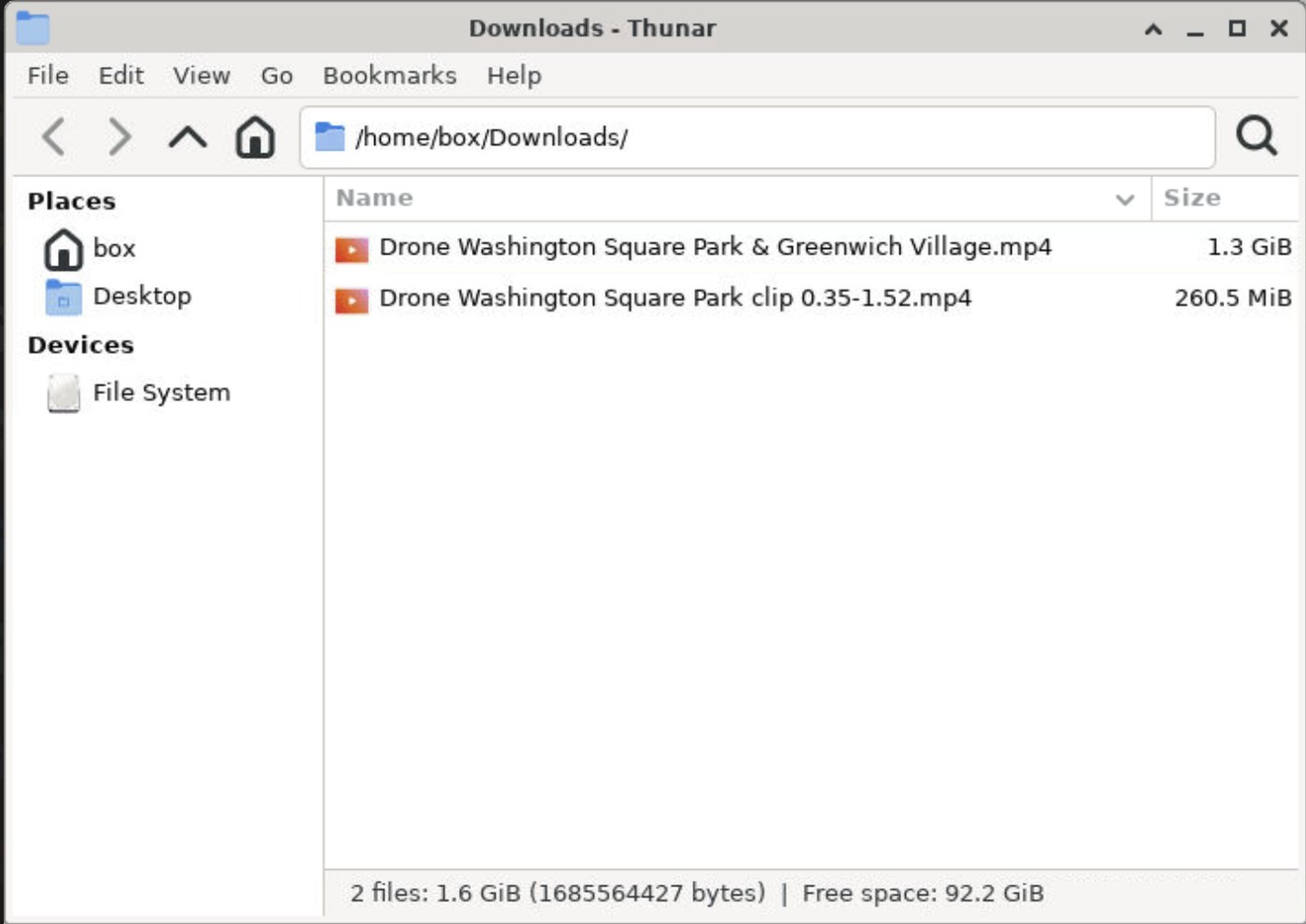
What to check when it finishes: title, full path, duration, resolution, codecs, and file size. On this desk that was formats 313+251 merged to mp4, VP9 video plus Opus audio, in Downloads, with a copy in Desktop because we asked for it to be visible.
How do you clip it without losing quality?
1. Name the file you just downloaded.
2. Give in and out times. This desk used 0:35 to 1:52, a 1:17 clip.
3. Ask the Bot to cut with stream copy, not a re-encode, and to keep 4K.
The clip command that kept VP9 4K and Opus:
ffmpeg -y -ss 00:00:35 -i INPUT.mp4 -t 00:01:17 -c copy -avoid_negative_ts make_zero -movflags +faststart OUTPUT.mp4
Swap the times for your cut. -c copy is the quality trick: it copies the existing streams instead of encoding again. The clip here landed at 3840×2160, 77 seconds, about 261 MB, in Downloads (and Desktop again, because we asked).
How do you save this as a skill?
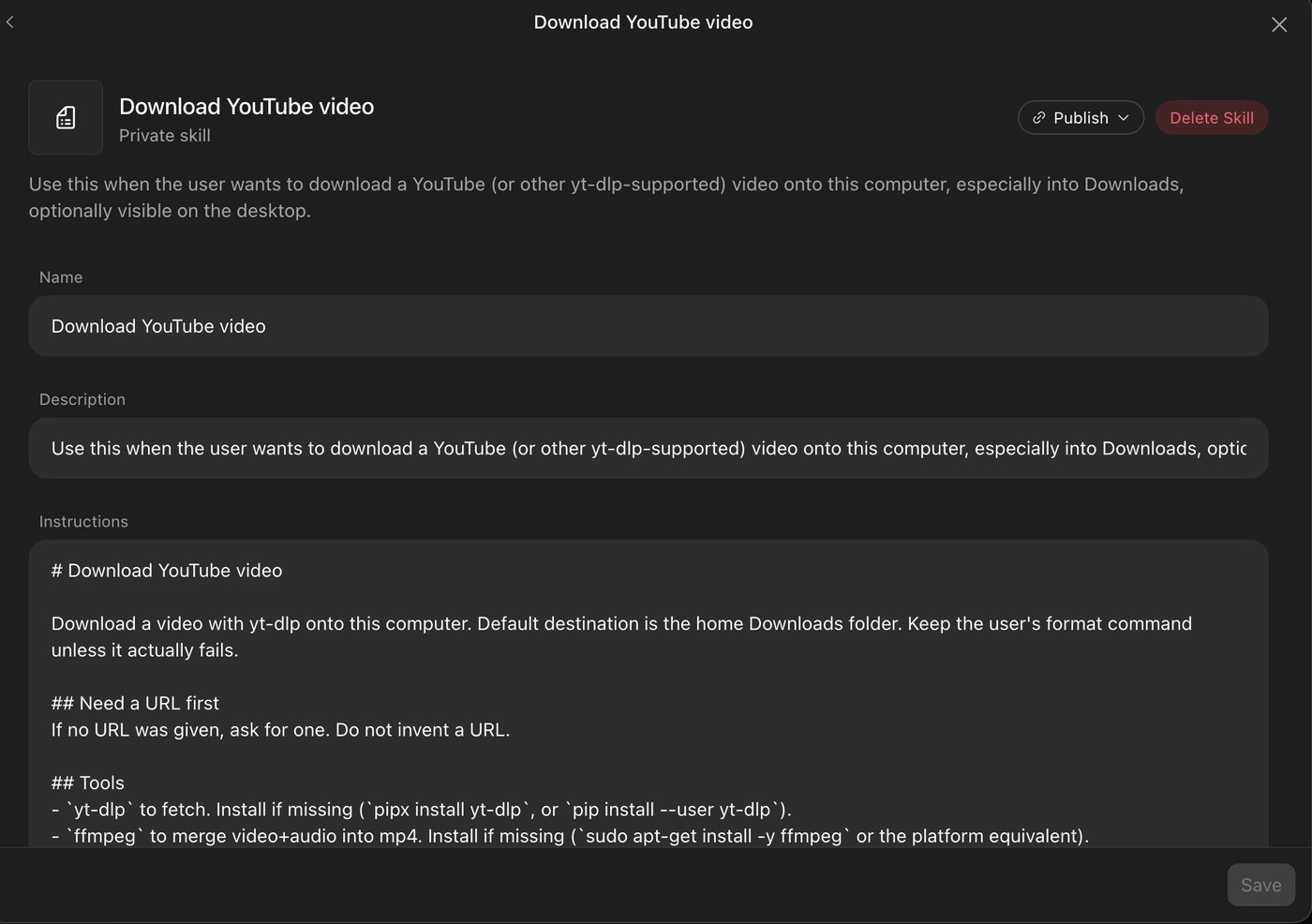
Once the download has actually worked, ask the Bot to turn that process into a skill. This desk’s skill is named Download YouTube video. It shows as a private skill.
1. Open the skill. Check Name, Description, and the instructions.
2. Description should say when to use it, not dump keys or private paths. This one: use it when the user wants to download a YouTube (or other yt-dlp-supported) video onto this computer, especially into Downloads, optionally visible on the desktop.
3. Instructions should require a URL, install yt-dlp and ffmpeg if they are missing, keep the VP9≤2160 merge-to-mp4 command unless it fails, copy to Desktop only if asked, then report title, path, duration, resolution, codecs, and size. Do not re-encode on download.
4. Select Save.
5. Publish and Delete Skill sit in that same skill window. A private skill stays on your Bot until you share the Bot.
Can you share the Video editor Bot?
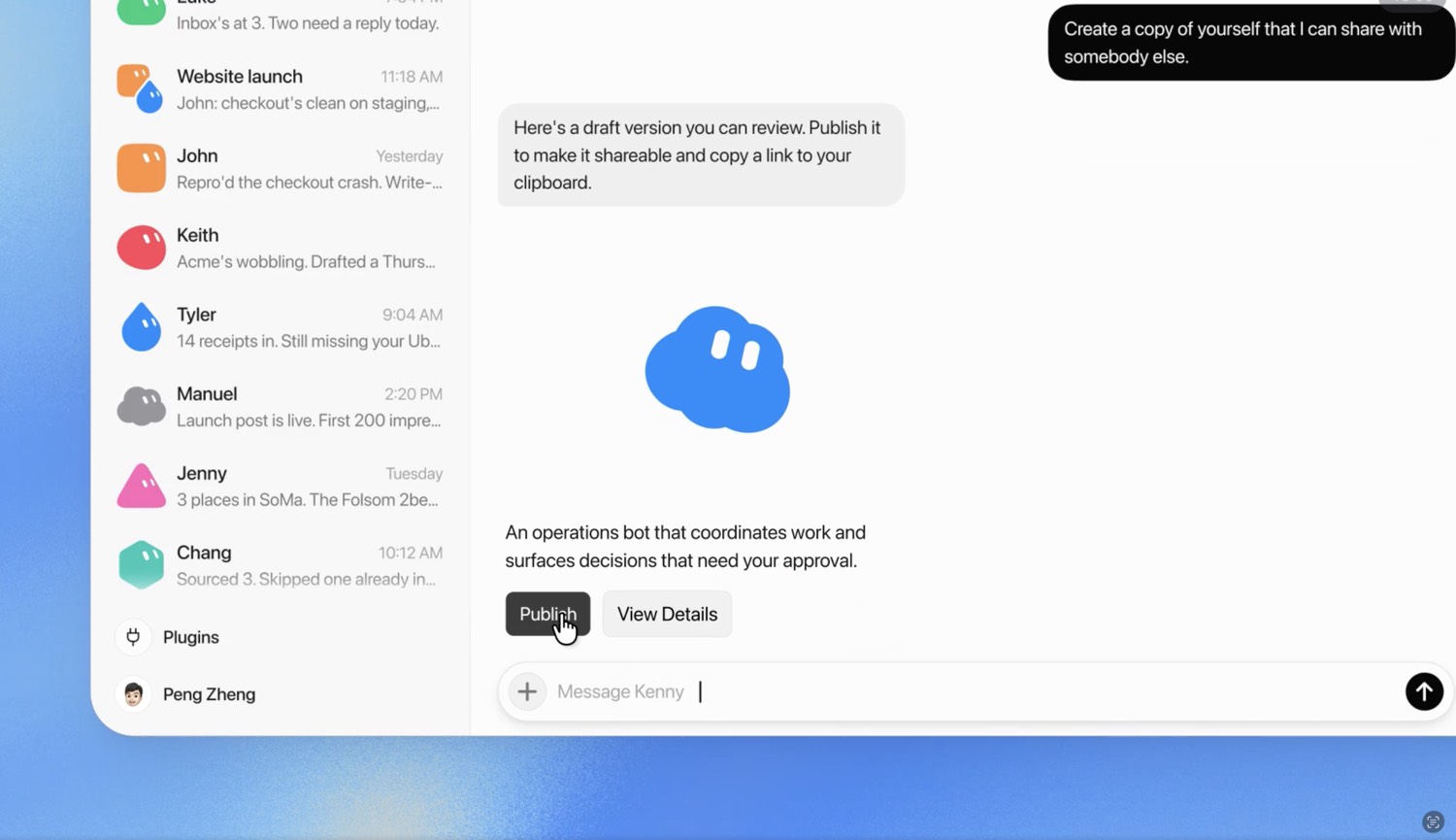
Yes, as a Grok Bot template, after the skill exists. xAI’s Create and manage Bots page is the official walkthrough, and we covered the feature in Grok Bot Adds Shareable Templates.
1. Open the Bot and copy its share link.
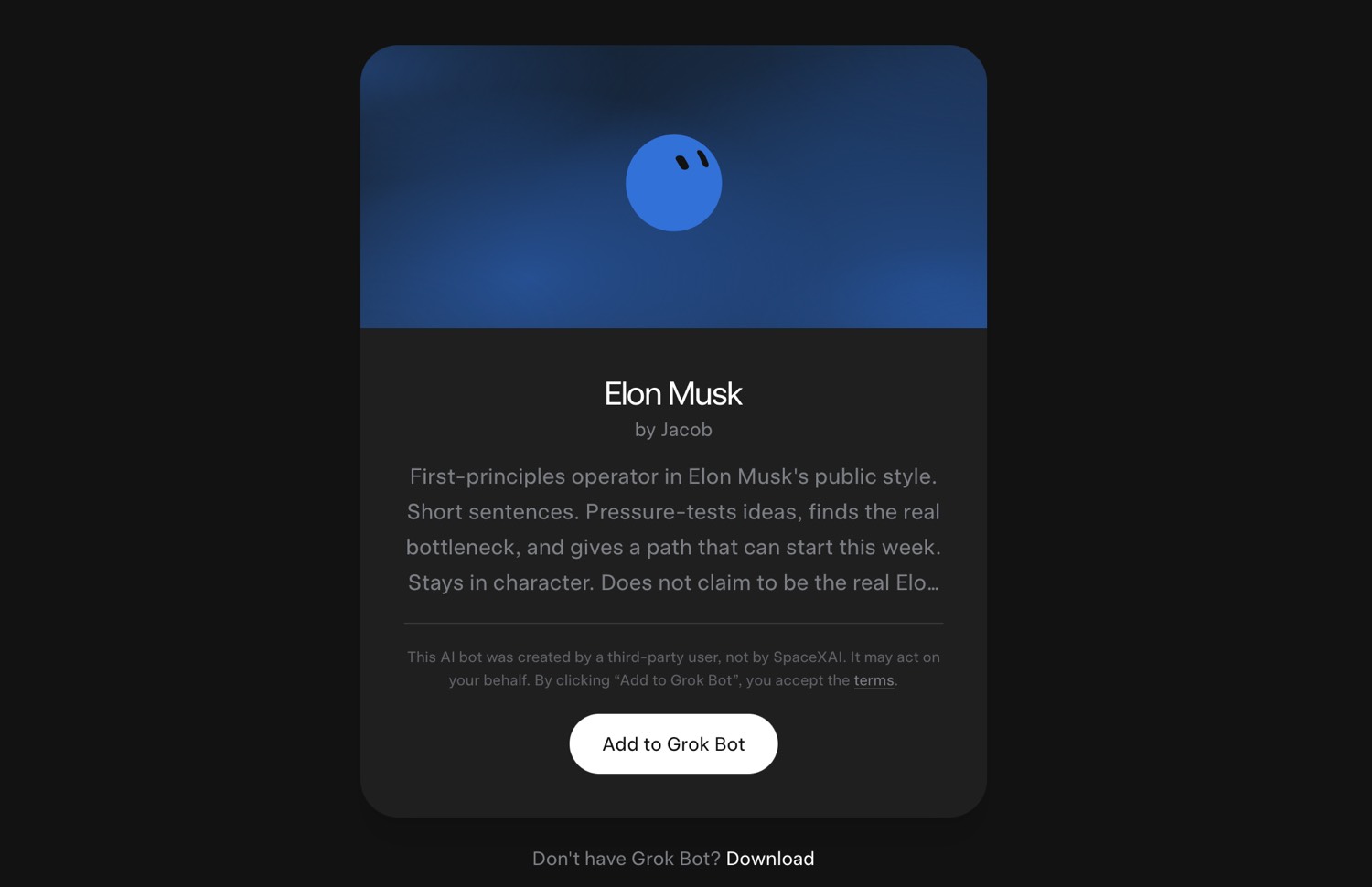
2. Send the link. The recipient opens a preview on x.ai and can choose Add to Grok Bot.
3. They need the Grok Bot app to finish adding it.
The public link includes identity, description, skills, and routines. The Download YouTube video skill can go with that pack. The actual mp4 files, YouTube cookies, logins, and chat history do not.
Before you copy the share link, go to Bot actions → Edit Profile. Rewrite Description so it only says what the Bot does, in public terms. Then check skills and routines for keys, URLs, and names. A clean Description is not enough. If a skill still has a secret in it, they get that skill with the secret in it.
The working path is: paste a URL, land the file in Downloads, clip with -c copy, then save the download as a skill. Share the Bot after that, if you want someone else to start from the same setup.
Video editor Grok Bot template
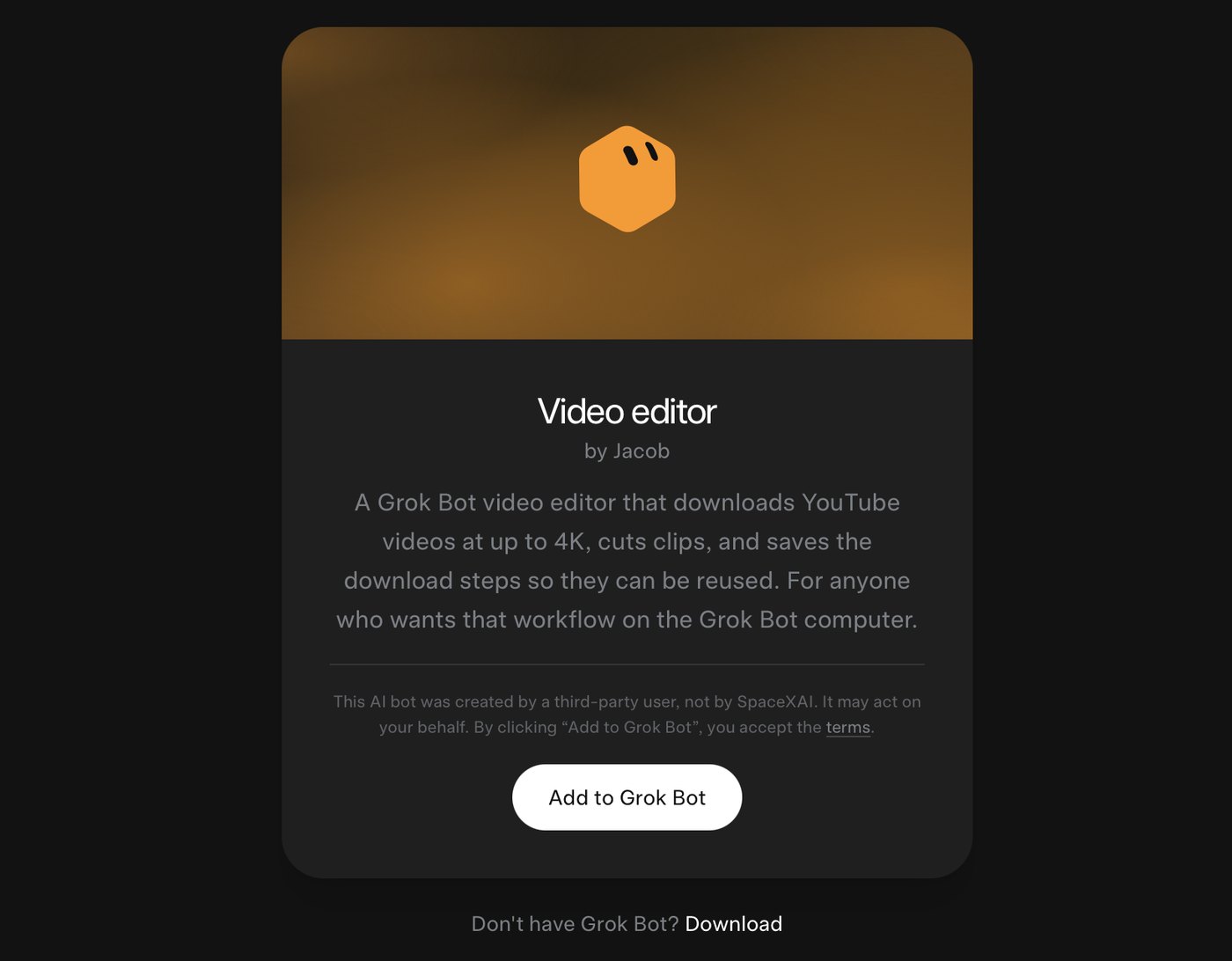
Ready to download to your Grok Bot app — just click:
Video editor by Jacob — Add to Grok Bot
https://x.ai/bot/FIFv0vSALmKzpYJlTDnj1
Related
GrokBotNews — Grok Bot Adds Shareable Templates
/article/grok-bot-shareable-templates
xAI — Create and manage Bots
https://docs.x.ai/grok-bot/bots
Source video used on this desk — Drone Washington Square Park & Greenwich Village
https://www.youtube.com/watch?v=SKtg-MXNZbI










0 Comments0Viewing